
01
Write your shot brief
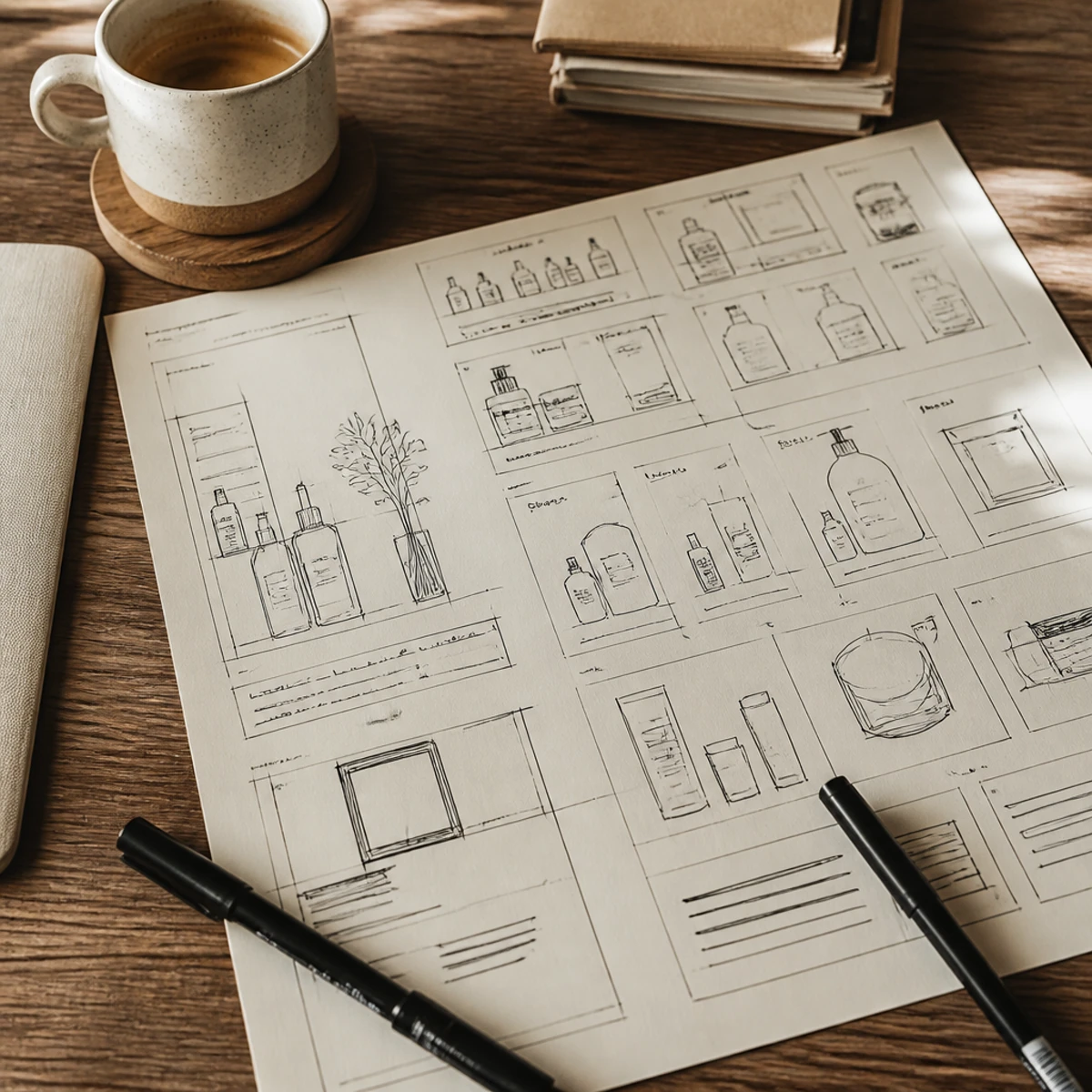
Tell Wan 5 what moves in the frame: the subject, action, camera movement, and continuity. A focused product close-up needs different instructions from a landscape pan or a portrait zoom.
Plan video shots with Wan 5. Describe subject action and camera movement, choose a model, and review a short clip. Use image tools to prepare first frames. Select your generation model and check the credit estimate before you start.
Prompt Examples
Explore four shot briefs for Wan 5: a skincare product pan, an event stage zoom, an editorial portrait reveal, and a billboard flyby. Open a brief to inspect its structure or try it in the generator. Images are illustrative stills.
Video workflow
Take a clear brief through the Wan 5 video workflow: describe subject action and camera movement, choose a model, add a reference image for the first frame, and review the clip.
01
Tell Wan 5 what moves in the frame: the subject, action, camera movement, and continuity. A focused product close-up needs different instructions from a landscape pan or a portrait zoom.

02
Choose from the models available in the Wan 5 generator. Review the selected model’s input controls and output options, then confirm the displayed credit estimate for your request.
03
Upload a reference image if your selected model accepts one. Explain whether it should guide the subject, composition, or color palette for the opening frame; keep the reference’s purpose clear rather than adding conflicting instructions.

04
Inspect your Wan 5 result. Check the subject action, camera movement, and continuity. Change one part of the prompt for a comparison you can evaluate.
Shot briefs & reference images
Direct your Wan 5 shot with a precise shot brief and, when supported by the selected model, a visual reference. Define what moves, what changes, and which details matter most.
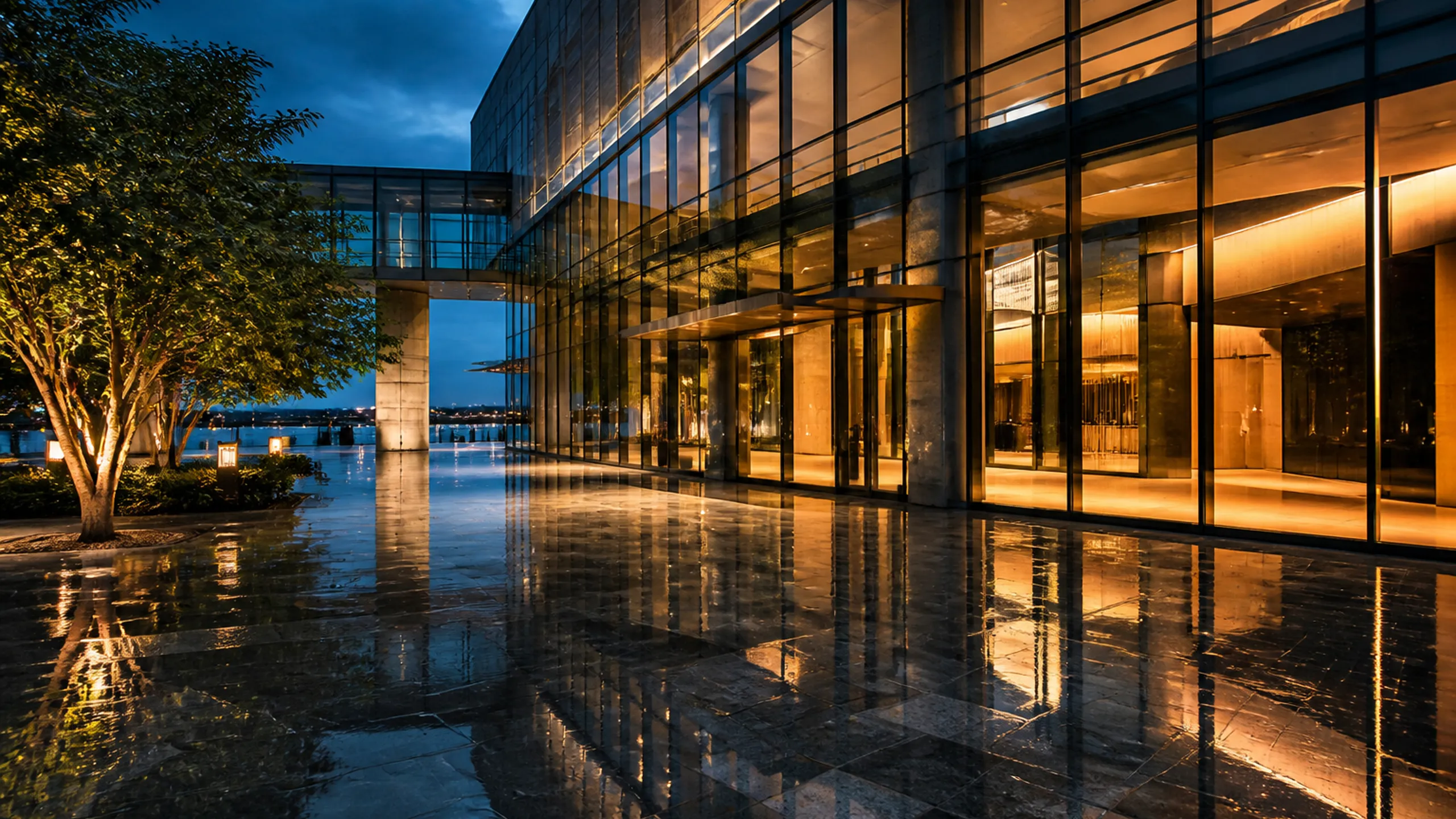
Start a Wan 5 shot from a written brief. Describe the subject, action, and camera movement, then add the framing and continuity details that make the clip useful for your project.

Use a supported reference image to explain a particular subject, pose, or visual style for the first frame. In Wan 5, state the intended change clearly and review whether important details remain consistent.
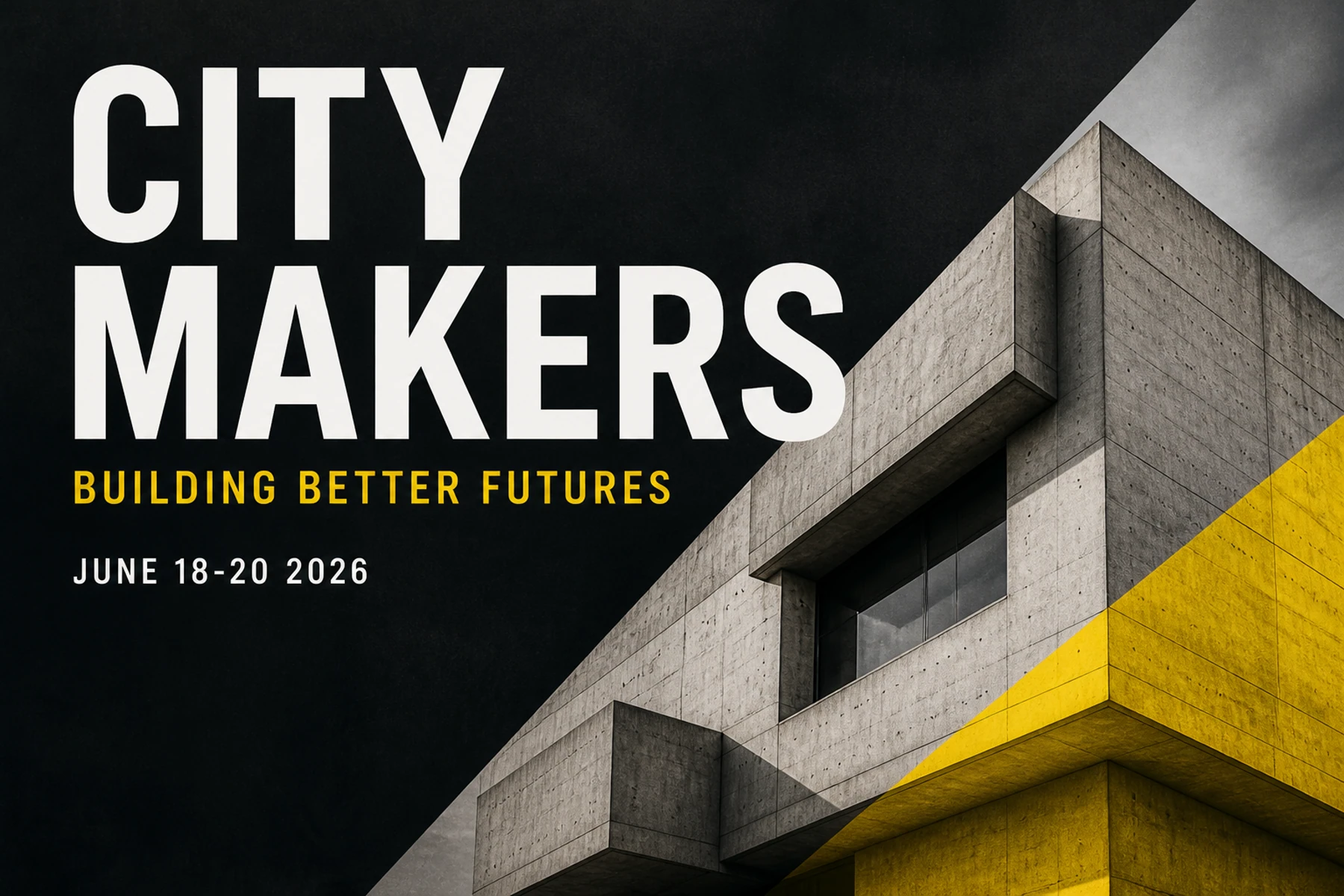
Plan a Wan 5 shot with a clear camera movement. Specify the subject’s position, the intended crop, and the motion path; review generated motion separately.
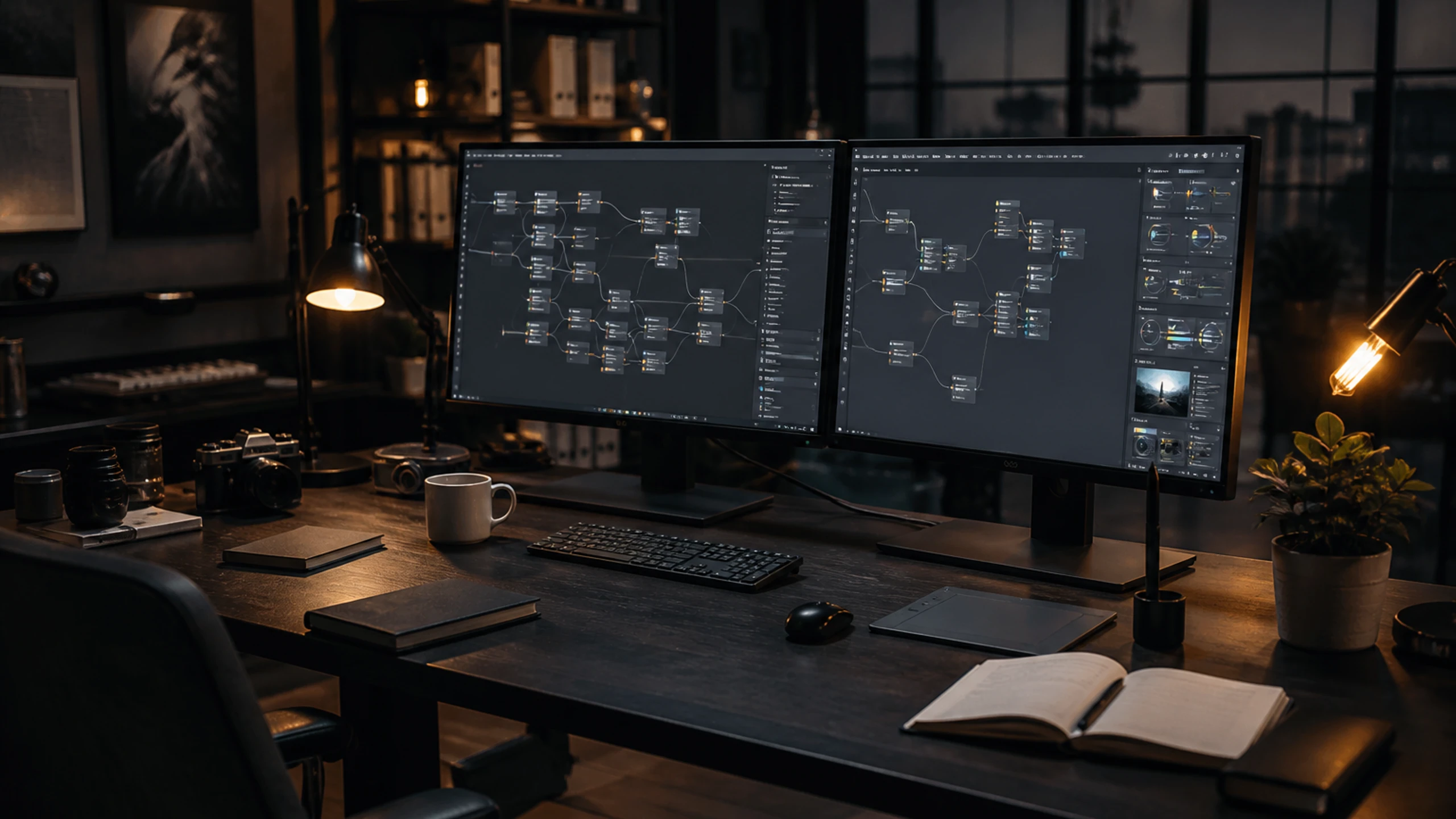
Give Wan 5 a specific lighting direction and a coherent palette. Describe surfaces such as matte fabric, wet stone, or brushed metal, then compare how the clip interprets those details.
Video ideas
Use Wan 5 for product demos, event recaps, interior walkthroughs, and creative mood reels. These illustrations show shot ideas to explore with your own brief.
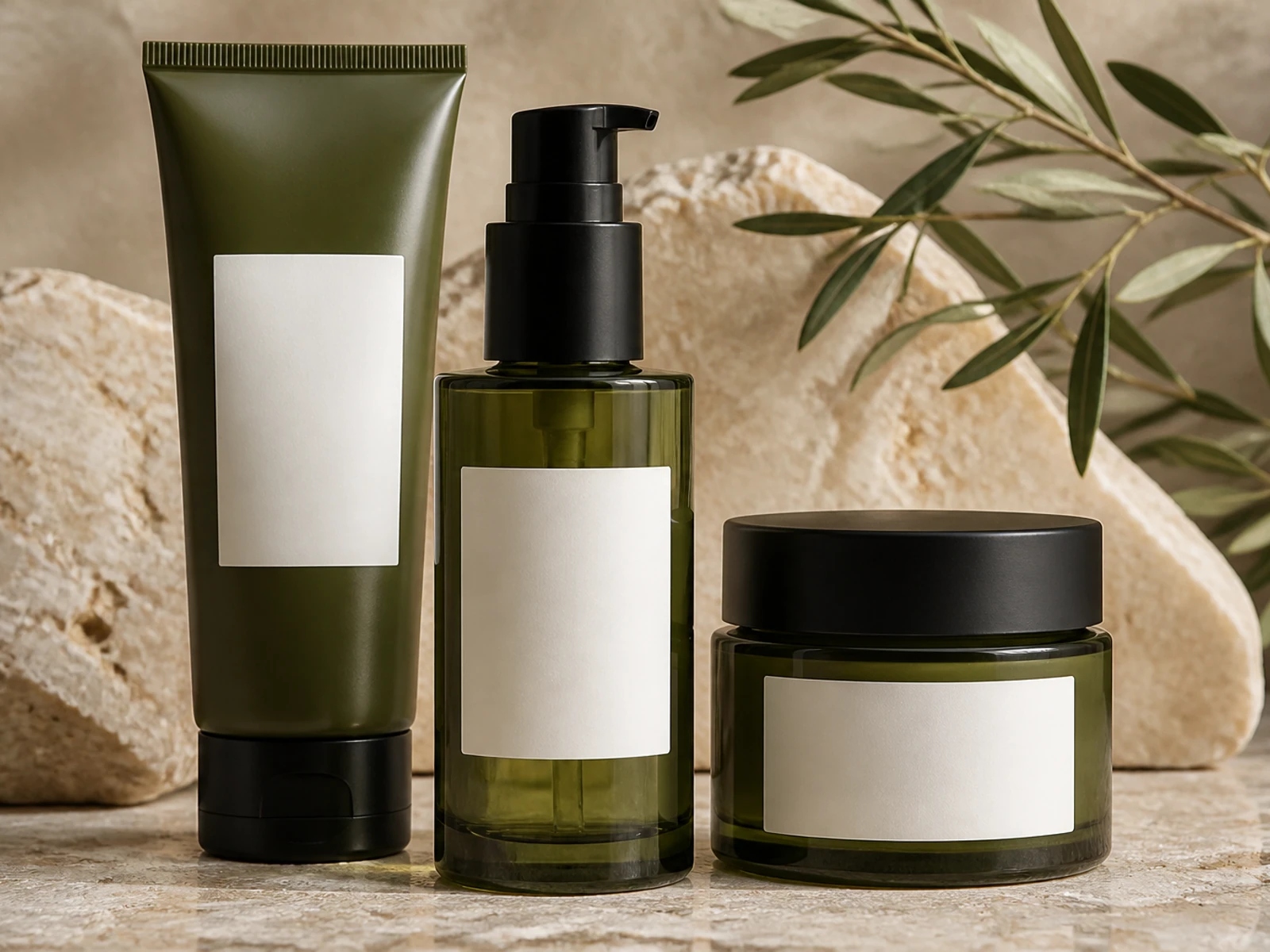
Plan a Wan 5 product shot with a clear backdrop, controlled highlights, and a slow camera orbit. Check object edges and contact shadows before preparing the clip for a listing.
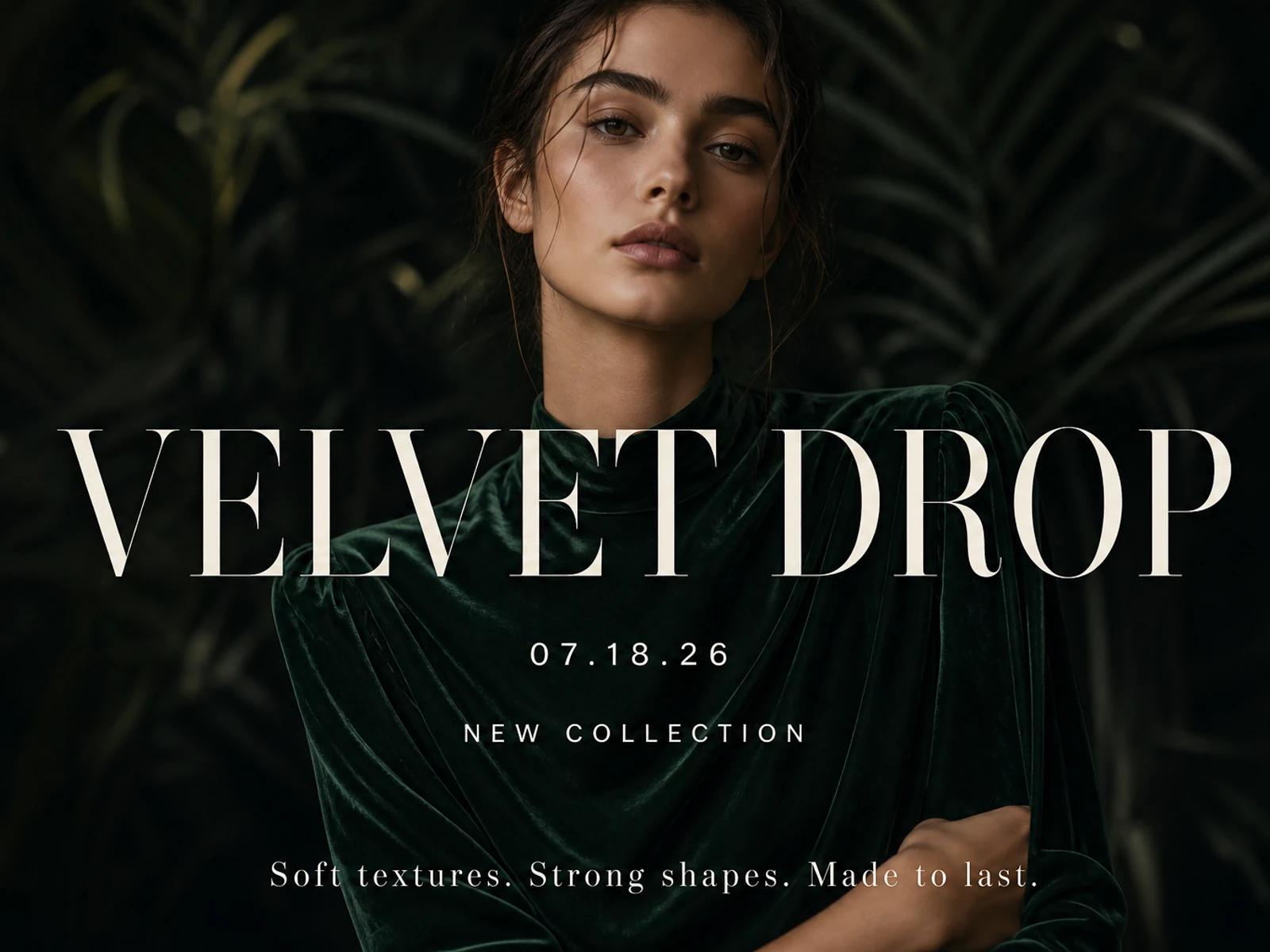
Build a fashion concept around a model walking or posing. Set the subject’s scale and camera angle in your Wan 5 prompt, then finish exact editing in your video editor.
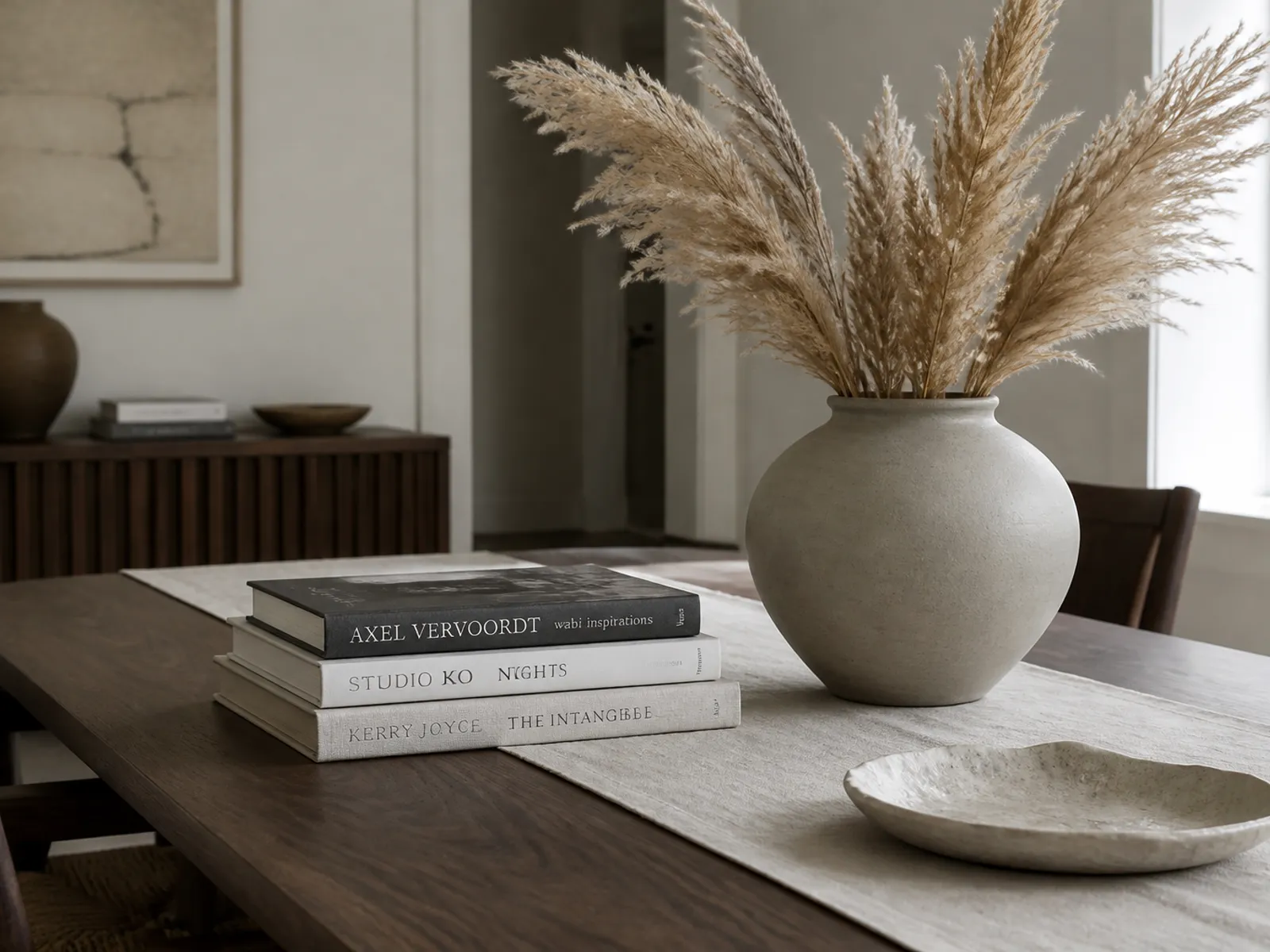
Describe the furniture, camera height, and direction of movement. Use Wan 5 to explore an interior or still life, then compare proportions, material detail, and the balance of empty space.
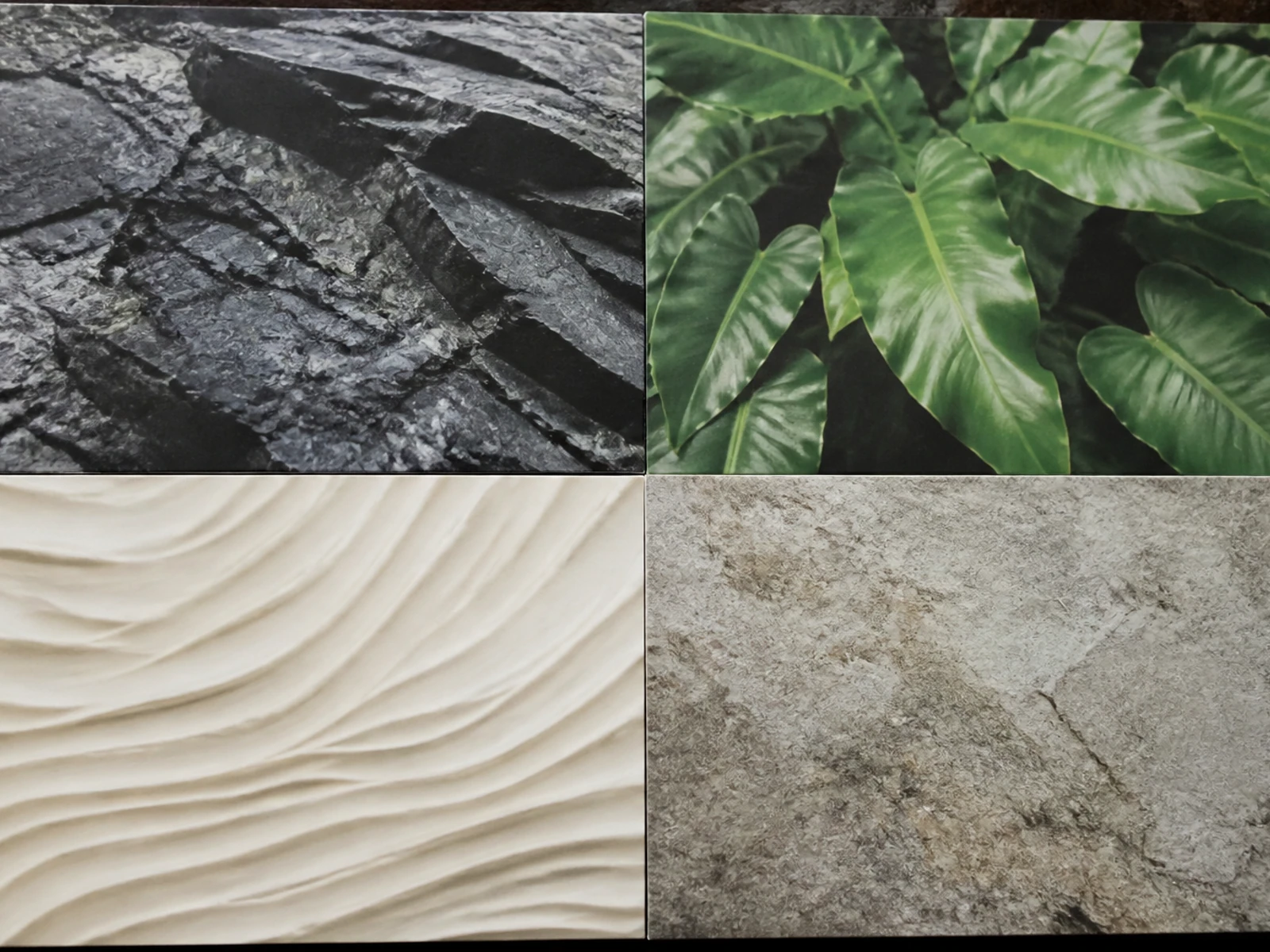
Explore textures, surfaces, and a consistent palette for your project. Generate individual Wan 5 concepts, inspect each result, and arrange your selected clips in a separate edit.
Generation workspace
Keep your shot brief, selected model, and review criteria aligned in Wan 5. Explore model previews below and decide which inputs and controls fit the clip you need.
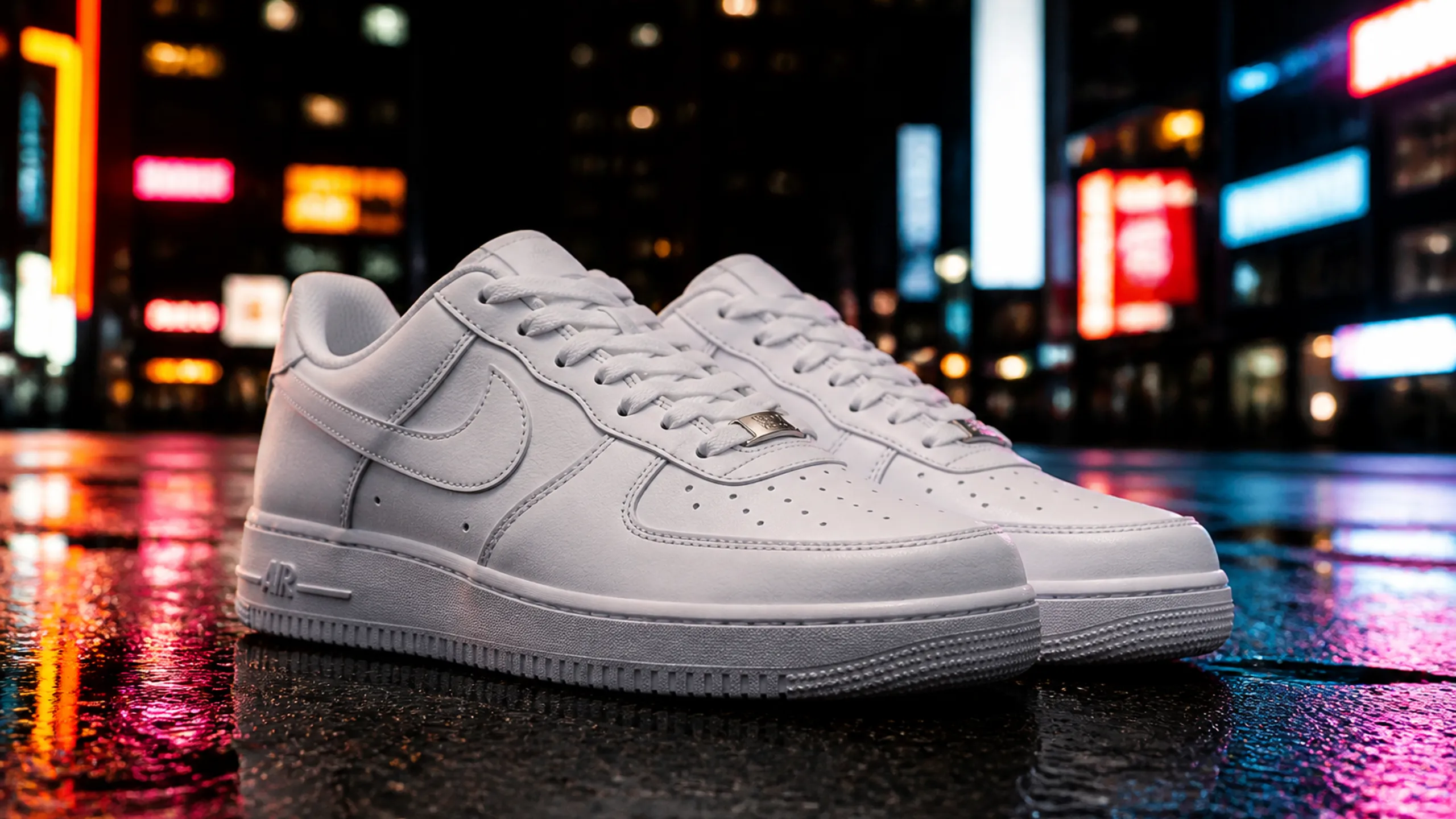
Wan 5 is the website’s workspace name. The generator identifies the actual model used, including the available Wan versions and other video models. Check that selection before generating.
Use text for a new scene and a supported reference image when visual guidance matters. Check input limits in the Wan 5 generator instead of assuming every model accepts the same files or settings.
Use model previews to explore composition and camera motion ideas. They are illustrative stills; compare your own Wan 5 results against the same subject, framing, and movement brief.
Review the visible output options and current credit estimate. If you change the model or format in Wan 5, check the estimate again before submitting the next request.
Credits
Check your Wan 5 balance and the displayed request estimate before generating. Review the pricing page for current plans and one-time credit packs.
Sign in to Wan 5 to see your available credits. New accounts receive 40 introductory credits; review the pricing page when you need a plan or a one-time credit pack.
The selected model and output options determine the estimate shown in Wan 5. Read the current cost before submitting rather than assuming every video uses the same number of credits.
Give each Wan 5 request one clear goal. Review the result before another attempt, and keep a note of the shot brief and settings you want to compare so your next generation has a purpose.
Check the task status and your Wan 5 balance before retrying an unclear request. If the outcome needs investigation, contact support with the task reference so it can be located.
Find answers about Wan 5 models, shot briefs, reference images, credits, and preparing your generated clips for use.
Clarifying the difference between the website brand and the actual model chosen for generation.
Understanding supported inputs and examining the returned details before using an output.
Using separate requests for each asset and completing assembly or detailed editing in external tools.
Understanding credits, checkout, and the role of the concept illustrations.
Related image pages
Continue your Wan 5 workflow on a dedicated model page to review its inputs and controls. These visual previews illustrate creative directions; they are not comparative performance tests.
Open the page to explore its inputs and pricing. Use a lettering concept to plan your composition, then verify every word in the generated image.
Each model presents a distinct approach to portraiture and group scenes. Review their individual pages to see examples and understand the creative controls available for your brief.
Examine the page before generating an illustrated scene. Use the preview to consider subject placement and background detail, then analyze your own result.
Compare the settings available on each page to decide what your brief requires. The portrait and fashion previews illustrate visual directions, not performance rankings.

GPT-4o
Concept reference: a close-up portrait lit with cinematic side lighting. This is an illustrative idea for composition, not a verified output from the model.
Explore Our Curated Set of Associated AI Models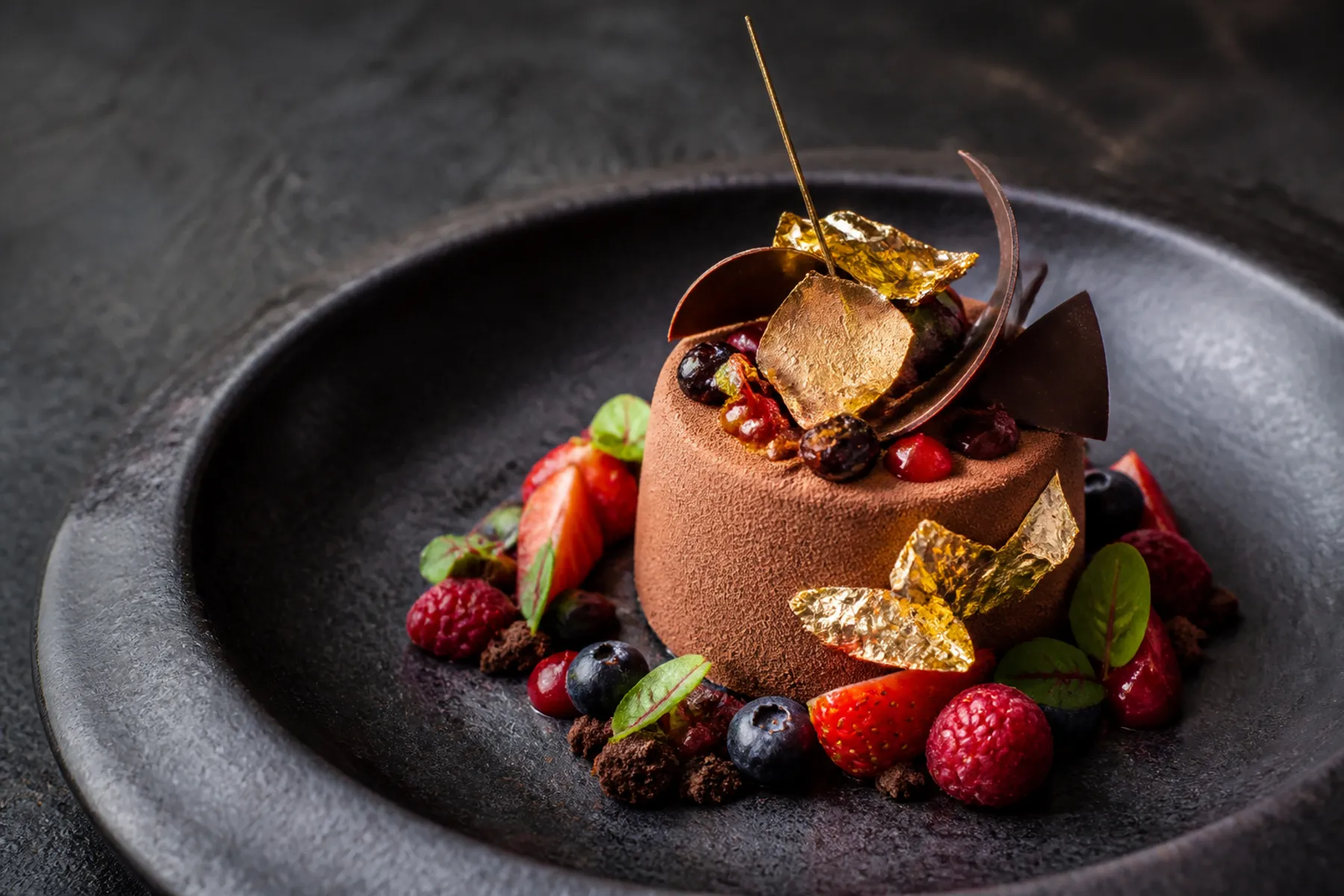
Nano Banana Pro
Concept reference: a gourmet chocolate dessert with berries and gold leaf. This is an illustrative idea for styling, not a verified output from the model.
Explore Our Curated Set of Associated AI Models
Nano Banana 2
Concept reference: a silver concept car in a concrete atrium. This is an illustrative idea for environment and subject, not a verified output from the model.
Explore Our Curated Set of Associated AI Models
Seedream 4
This concept sketch envisions a floating temple at sunset, a possible direction for your story's setting.
Explore Our Curated Set of Associated AI Models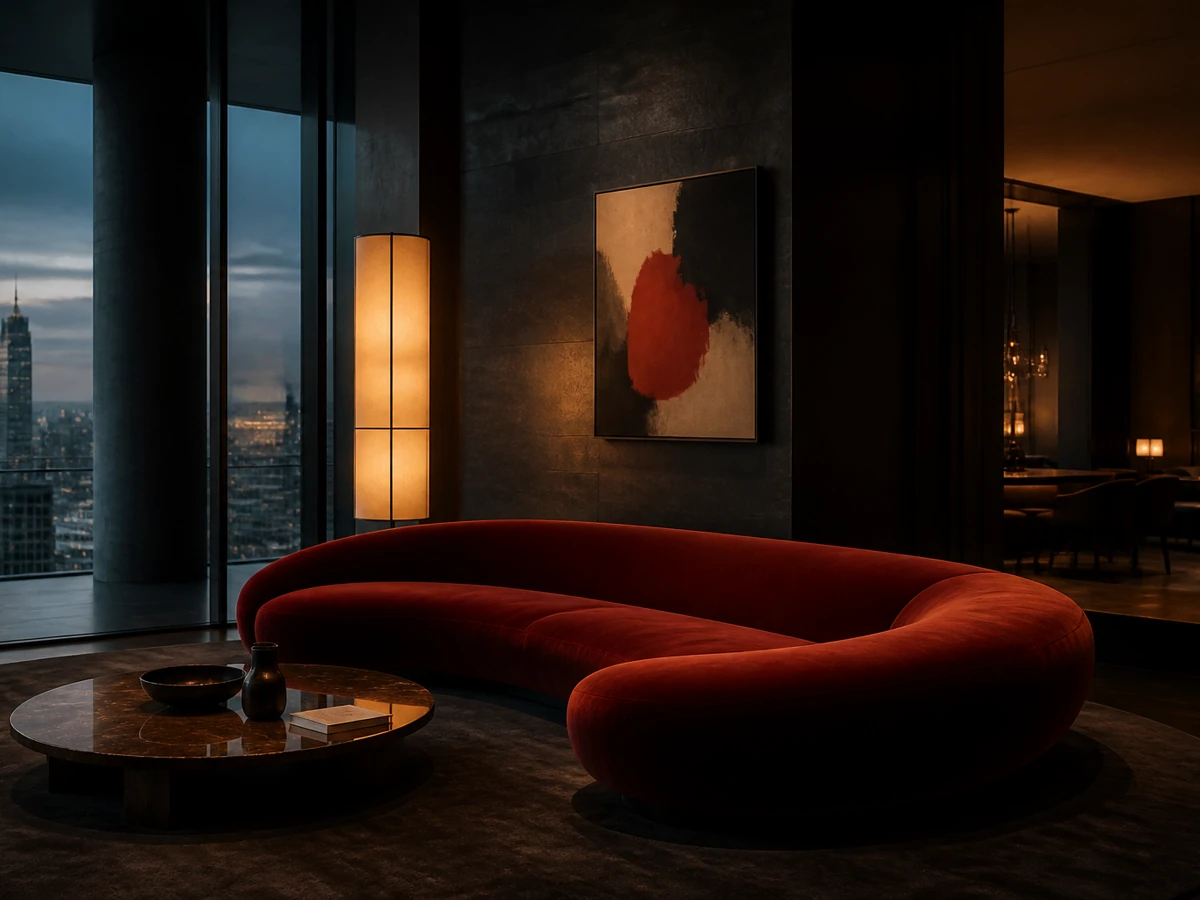
Z-Image
Concept reference: penthouse living room with a red velvet sofa at twilight. Not a verified Z-Image output.
Explore Our Curated Set of Associated AI Models
Flux 2
This concept sketch shows a jet fighter in sunlit clouds, a potential direction for your dynamic scene.
Explore Our Curated Set of Associated AI Models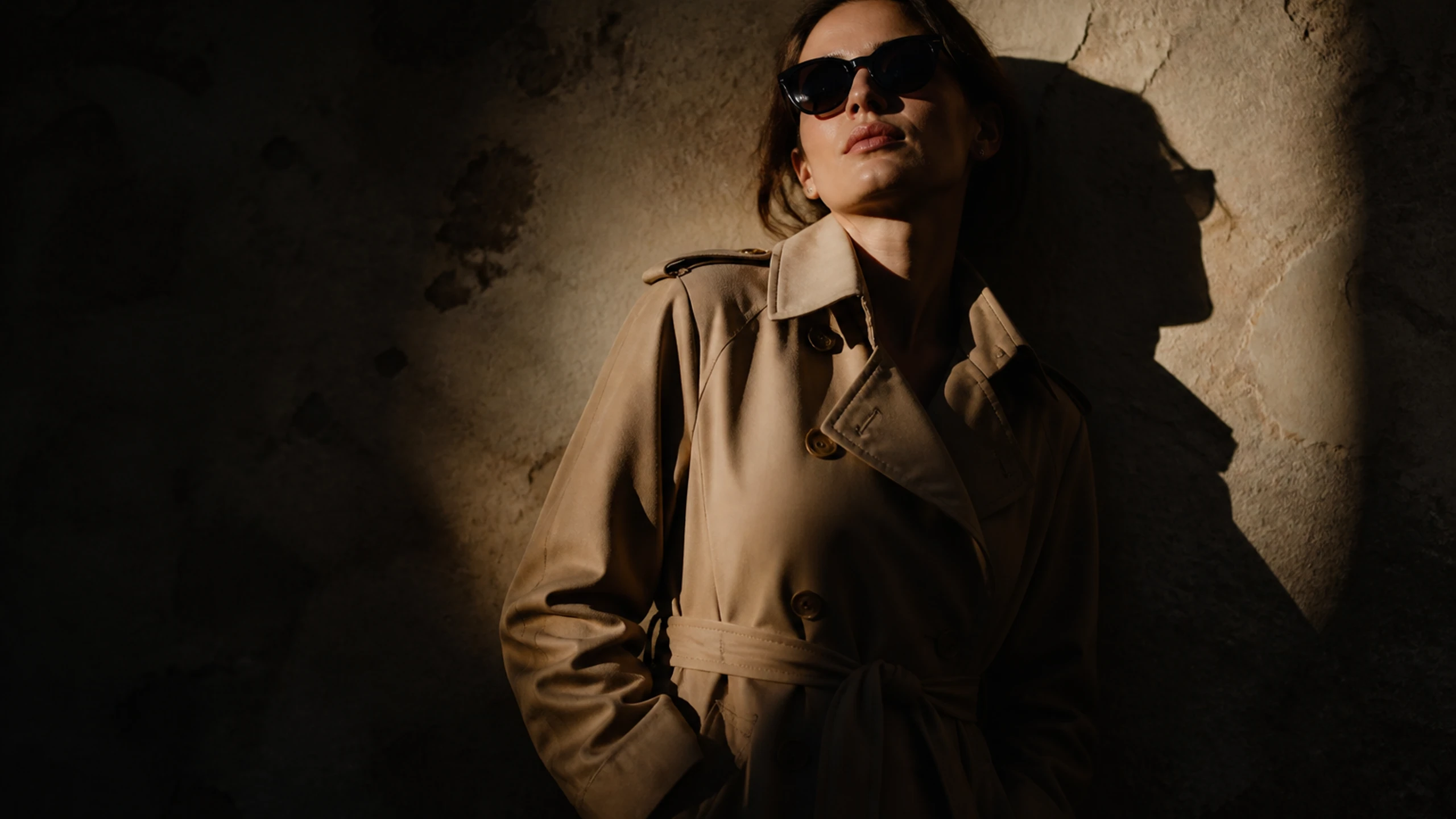
Open the Wan 5 generator with a clear shot brief. Choose your model, check the available controls and credit estimate, then create a result you can review and refine.
Choose a specific placement or use case before describing the scene. This ensures your first attempt is focused enough to be evaluated against a concrete goal.
Verify the available inputs, format options, and credit estimate shown in the generator. Base your plan only on the options currently displayed.
Describe the subject, setting, and composition clearly, then identify the specific details you will look for in the generated result.
Examine the generated asset and determine if it fits your intended use. Adjust one direction at a time before building a larger set of shots.
Build a better brief with practical Wan 5 guides for subject action, camera movement, and shot continuity.
Explore all guides ↗


